Setting up Microsoft Authenticator
If you experience any problems with your username or password, please contact the IT Helpdesk at ITHelpdesk@rcs.ac.uk or submit a ticket at rcs.ac.uk/help
Page Navigation
To secure your RCS IT account you must setup Microsoft Authenticator (MFA).
To do this you require a smart phone that supports the Microsoft Authenticator app, available on the Android Play store or Apple App store.
It is strongly recommended that you use a desktop or laptop device when accessing your account for the first time.
If you only have a mobile device, you can still setup Microsoft Authenticator (MFA) but you should follow the correct guide below.
If you have a smart phone and a separate laptop or desktop, follow guide 1, otherwise follow guide 2.
Guide 1 – Smartphone AND Laptop/Desktop
On your laptop or desktop visit the website https://outlook.com/rcs.ac.uk and enter your username and password.
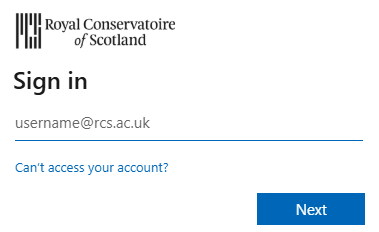
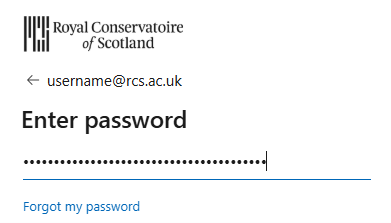
If you need help with your username or password, please see our username and password guidance.
When you sign into your account for the first time you will receive a prompt: “Let’s keep your account secure”
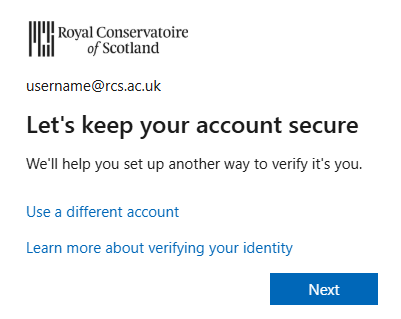
Keep pressing the next button until you are prompted to scan the QR Code.
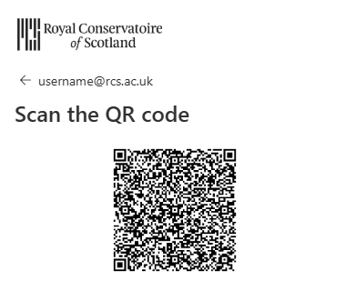
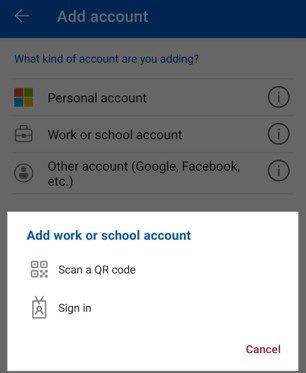
On your mobile device download and open the Microsoft Authenticator App and select the plus symbol at the top of the screen > work or school account > scan QR Code. If you are prompted, please allow notifications and access to your camera.
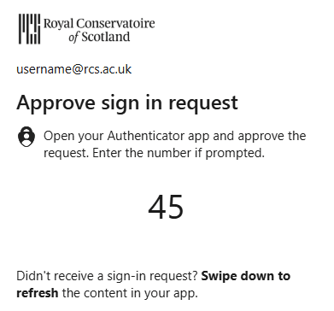
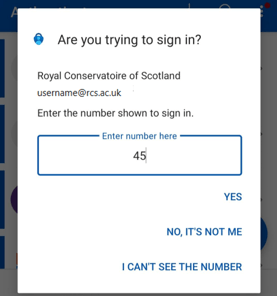
Once you have scanned the QR code press the next button on your desktop or laptop and enter the number shown into your smartphone.
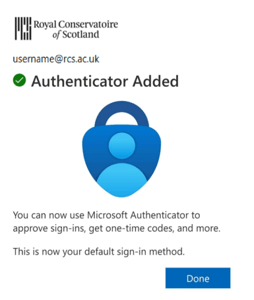
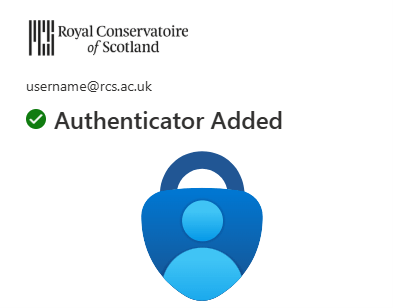
Your Microsoft Authenticator setup is now completed.
Guide 2 – Smartphone Only
If you only have a smartphone and no available desktop or laptop please follow these instructions.
On your mobile device download the Microsoft Authenticator App
On your phones web browser visit outlook.com/rcs.ac.uk (We strongly recommend you use the Chrome app or Safari app for this)
Login using your provided username and password.
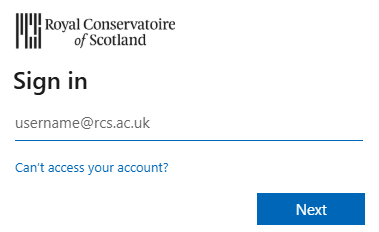
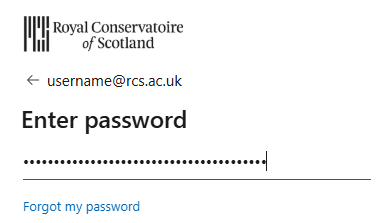
When you sign into your account for the first time you will receive a prompt: “Let’s keep your account secure”
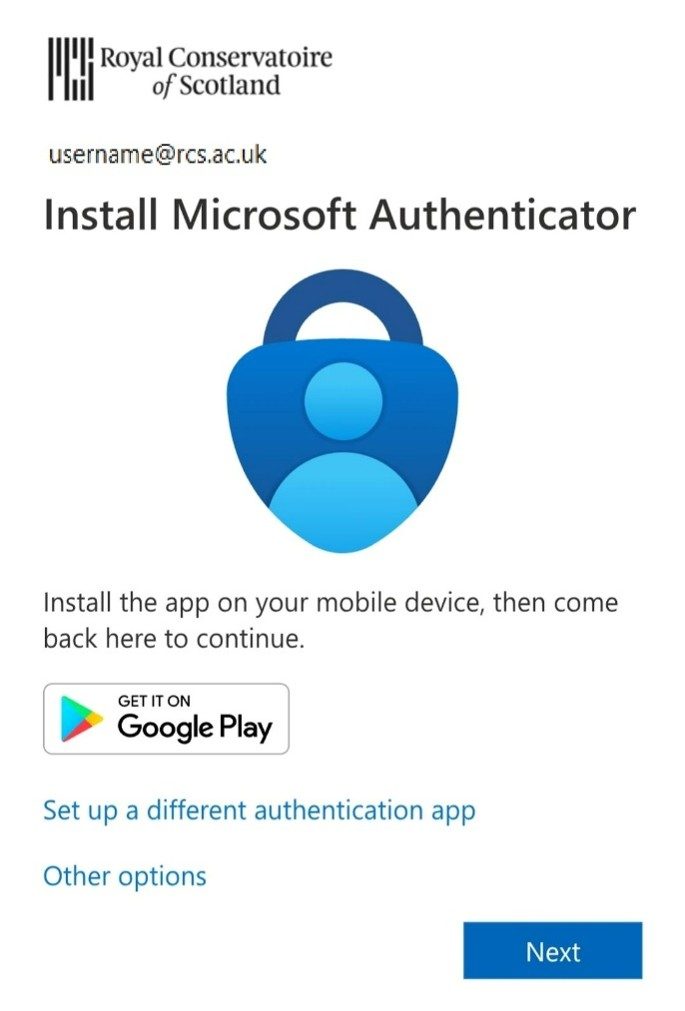
Choose the next button
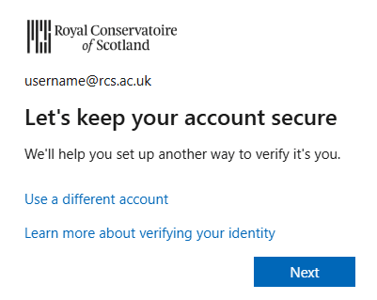
Choose the next button again
Click on “Pair your account to the app by clicking this link.”
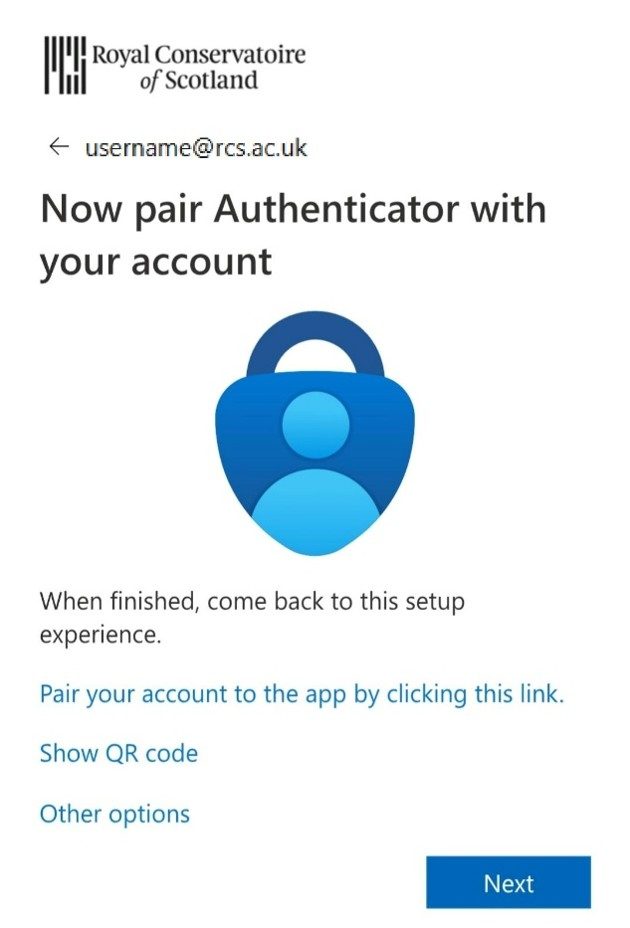
Your phone should automatically open the Microsoft Authenticator app and pair your account and then return you to the web browser.
Follow the steps to sign in and enter the code when prompted.
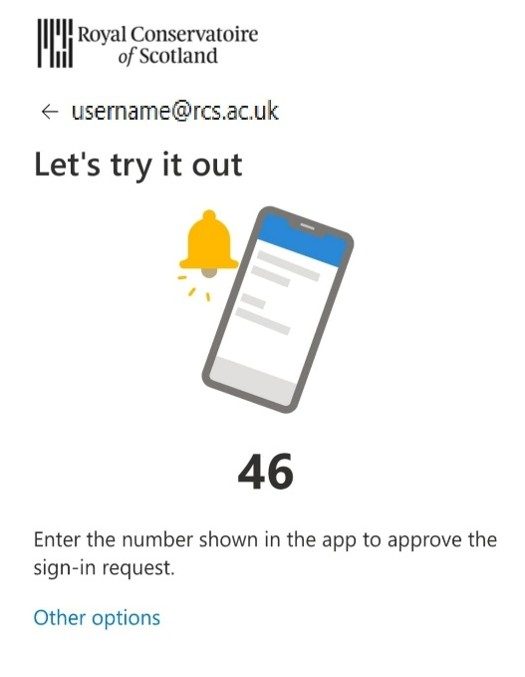
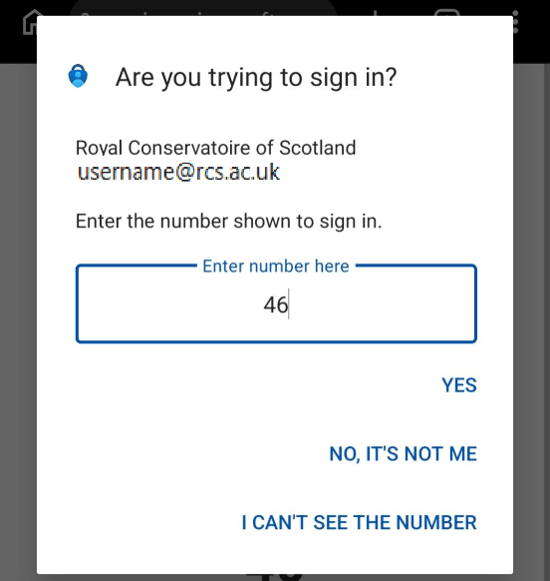
Your Microsoft Authenticator setup is now completed.